Clicklaw Wikibooks Print/Export Guide
This is a help page for contributors or users.
- This page contains no legal help information.
- See other Clicklaw Wikibooks Guides.
Choose how you want to read and share Clicklaw Wikibooks.
This guide explains how to:
- print pages directly from your computer printer,
- download pages as PDF,
- download a whole Clicklaw Wikibook as one PDF,
- order a whole Clicklaw Wikibook as a print-on-demand book,
- use the "Book Creator" to make your own book, selecting portions of a single title, or combining parts from various Clicklaw Wikibooks into a single PDF, e-book or printed book.
Print from your computer printer
To print a single page, select "Printable version" option from the list of Print/Export options at the left of your screen. It will reformat the content to print using your browser's print function. This is the simplest way to print of information to read later.
Download single page as PDF
If you just want a PDF of the wiki page you are on, select "Download as PDF" option from the list of Print/Export options at the left of your screen. This creates a single PDF file quickly. It will only have the content of the current page.
Download whole wikibook as PDF
If you want a file to read at your own pace, print as a whole wikibook, or email to a friend, PDFs are readable on nearly any device (computer, smartphones, etc.). PDFs are also very good for printing.
Here is a complete list of all Clicklaw Wikibooks.
Quickly downloading a whole Clicklaw Wikibook
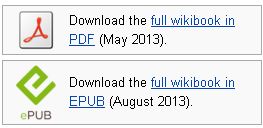
The main page for most titles offers a quick PDF file of the entire wikibook for download. Look for the PDF icon in a box as shown below. Most of these downloadable PDF files are updated daily based on what's in the wiki version.
Manually downloading a whole Clicklaw Wikibook
To download a PDF format from the most up-to-date content requires a couple steps:
- Click on the cover image of a title from this page.
- Then look for the Download box of options and select the PDF format from the drop-down list.
- Click "Download".
Order a Clicklaw Wikibook for print
It's possible to order Clicklaw Wikibooks as fully printed and bound books. This is known as print-on-demand, and each book ordered through in this way is up-to-date with the most current information in the wiki. We do not print or ship these books ourselves and do not set the price for this service (ordering in print is the only option that costs anything), however readers may prefer the feel and convenience of a printed book so we have arranged a complete list of all Clicklaw Wikibooks ready for you to purchase for printing and shipment using a third-party service called PediaPress.
When you click on the cover image of a title from this page look for the Order as a printed book box. Click "Preview with PediaPress".

Using "Book Creator" to build your own book
In four easy steps, books can be created in PDF format or ordered for printing.
Step 1: Enable the "Book creator" tool

... be sure to click on the "Start book creator" button.
Step 2: Collect pages
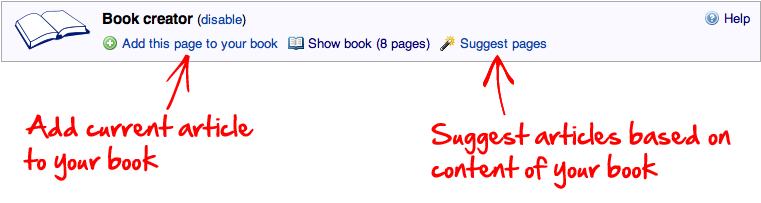
After selecting a few pages, you can click on "Suggest pages" and you will be presented with a list of pages related to your selection. This helps you to create a more complete book if you want.
Step 3: Review your book
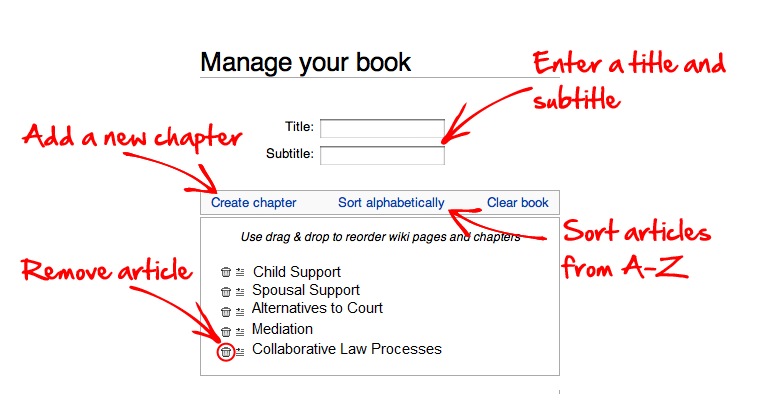
Step 4: Download or order a printed book
You can export your book in PDF format:
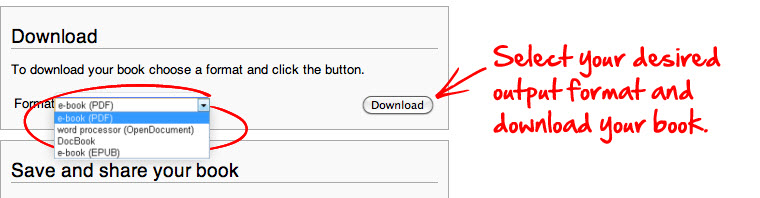
Or you can order a printed softcover book:
| |||||||||||||||||||||||||||||||||||